
Search Knowledge Base by Keyword
This KB documentation is using Advanced Search, Links Editor and Elegant Layouts add-ons.
-
Echo Knowledge Base
-
Add-ons
-
Access Manager
Switching AI Providers
0 out Of 5 Stars
| 5 Stars | 0% | |
| 4 Stars | 0% | |
| 3 Stars | 0% | |
| 2 Stars | 0% | |
| 1 Stars | 0% |
Overview
Echo Knowledge Base supports two AI Providers:
- OpenAI ChatGPT
- Google Gemini
You can switch between them at any time, but some reconfiguration is required because each provider stores training data in its own vector store.
Key terms:
- AI Provider — the AI service used for AI Search, AI Chat, and Training Data.
- Data Collection — a provider-specific set of content sent to the AI Provider. AI Search and AI Chat can only use Data Collections belonging to the active provider.
What changes when you switch:
- Data Collections are provider-specific and do not transfer.
- Only the active provider’s collections appear in AI Search and AI Chat. Collections from the other provider are preserved and reappear if you switch back.
- AI Chat’s selected collection, and AI Search’s KB-to-collection mappings, may need to be re-assigned.
The steps below walk you through getting AI Search and AI Chat working again on the new provider.
Step 1 Enter the API Key for the New Provider
- Go to AI Features → General Settings
- Paste your API key for the newly selected provider (OpenAI ChatGPT or Google Gemini)
- Accept the AI disclaimer
- Save settings
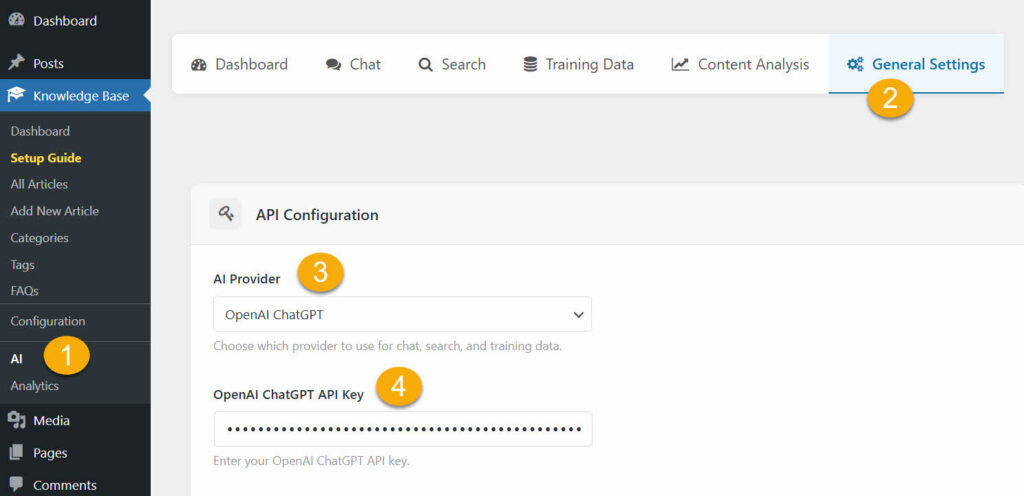
Step 2 Create a Training Data Collection (optional)
Go to the Training Data tab. Only collections belonging to the active provider are shown — any collections from the other provider are preserved but hidden until you switch
back.
If you already have a collection for this provider, skip to step 4.
Otherwise, create a new collection and continue to step 3.

Step 3 Add Content to the New Collection
#3 - In the Training Data tab, select the articles, pages, FAQs, or other content you want the AI to use
#4 - Sync the content to the new provider's AI storage (vector store)
- Wait for all items to show as Synced
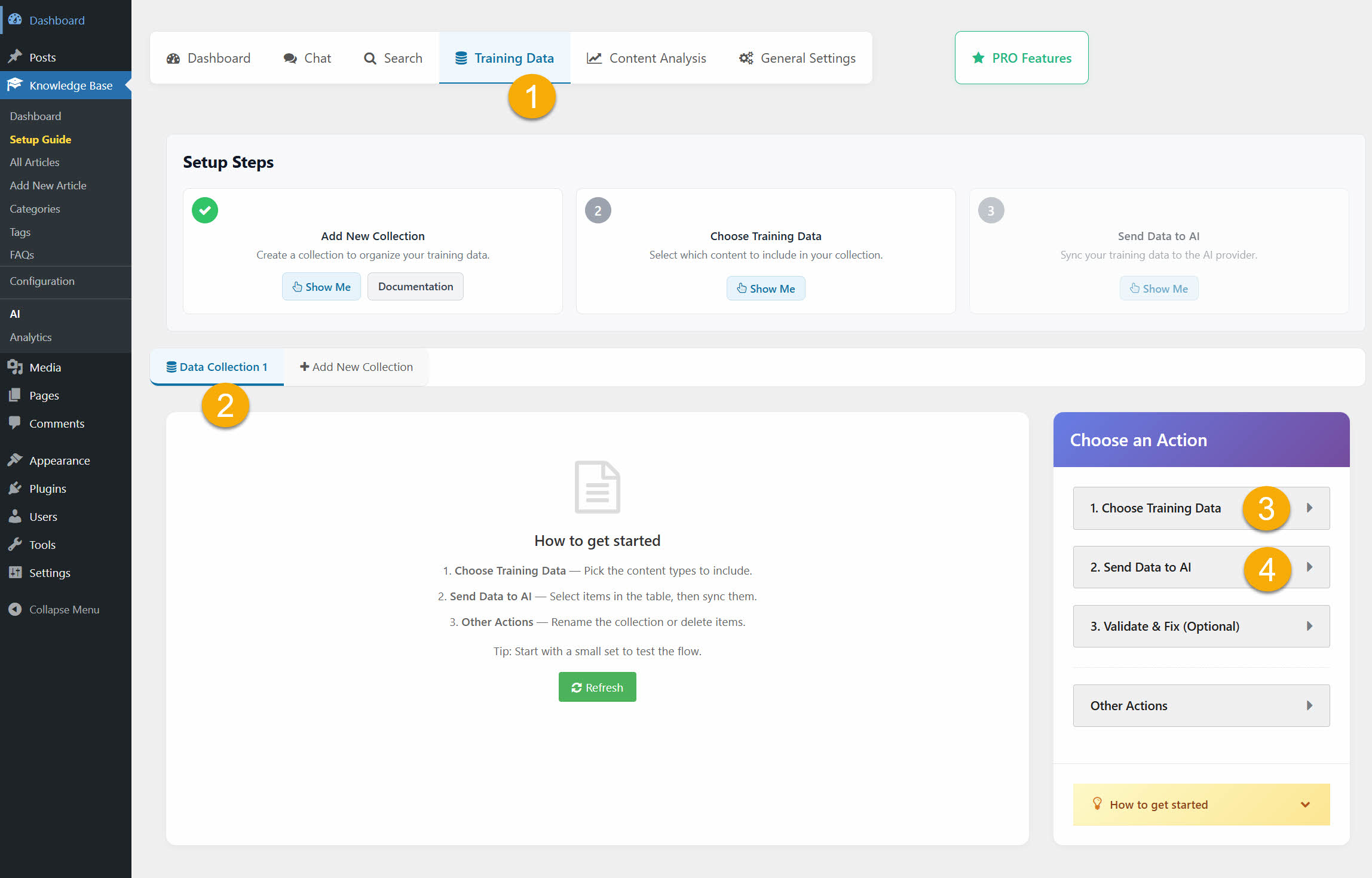
Step 4 Reconfigure AI Chat (if used)
#2 - Go to the AI Chat tab
#3 - Set AI Chat Mode to Preview (admins only) or On (public)
#4 - Review Display Mode (Show Everywhere / Only Show On / Don't Show On)
#5 - In the collection dropdown, select the Training Data Collection for the new provider
#6 - Access Mode for frontend access
Save settings and test the chat on your site

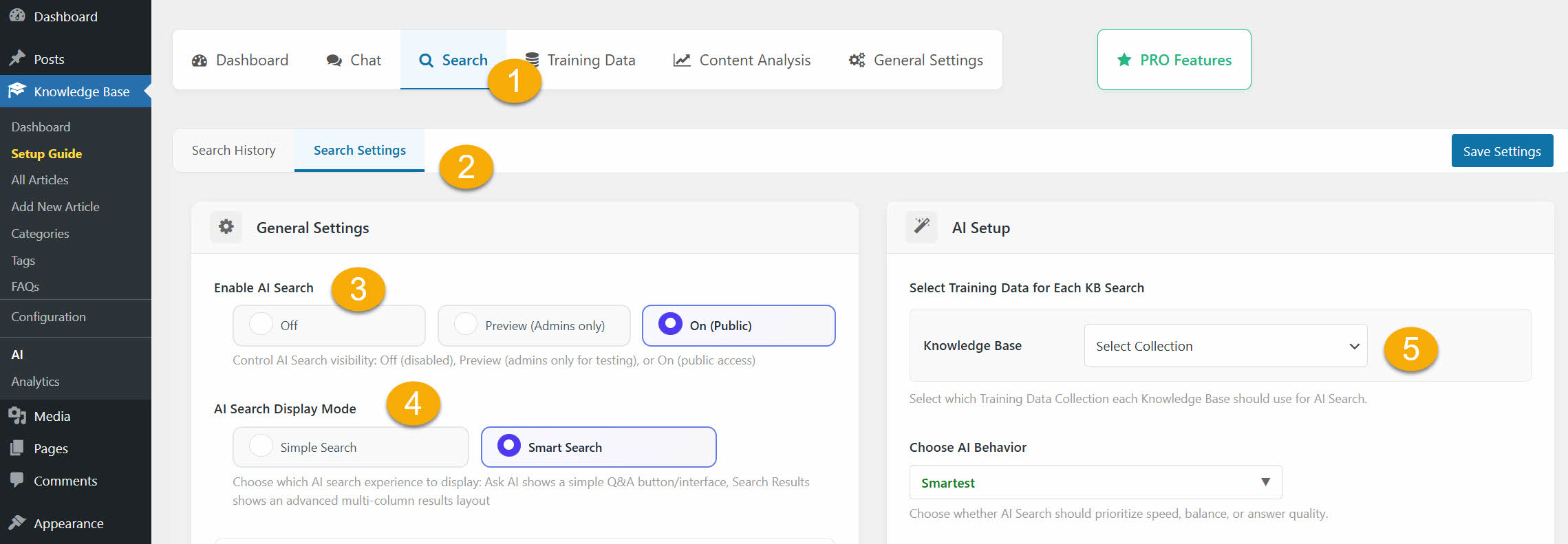
Step 5 Reconfigure AI Search (if used)
#1 - Go to the AI Search tab
#2 - Set AI Search to Preview or On
#2 - Start with Simple Mode or use Smart Search
#3 - Under Select Training Data for Each KB, re-map each Knowledge Base to a collection that belongs to the new provider (same provider-mismatch warning applies)
Save settings and verify search works on the frontend.
Step 6 Verify and Monitor
On the frontend, run a few test queries in both Chat and Search to confirm answers are coming from the new provider
Notes on switching back and forth
- Collections are provider-specific and never transfer between providers — each provider maintains its own vector store.
- When you switch back to a previously-used provider, its collections and KB mappings are restored automatically; you generally won’t need to re-map anything you set up before, only re-sync content that has changed since.
- If you don’t plan to switch back, you can delete unused collections to keep the list clean (switch to that provider first to see them).
0 out Of 5 Stars
| 5 Stars | 0% | |
| 4 Stars | 0% | |
| 3 Stars | 0% | |
| 2 Stars | 0% | |
| 1 Stars | 0% |