Search Knowledge Base by Keyword
This KB documentation is using Advanced Search, Links Editor and Elegant Layouts add-ons.
Content Analysis
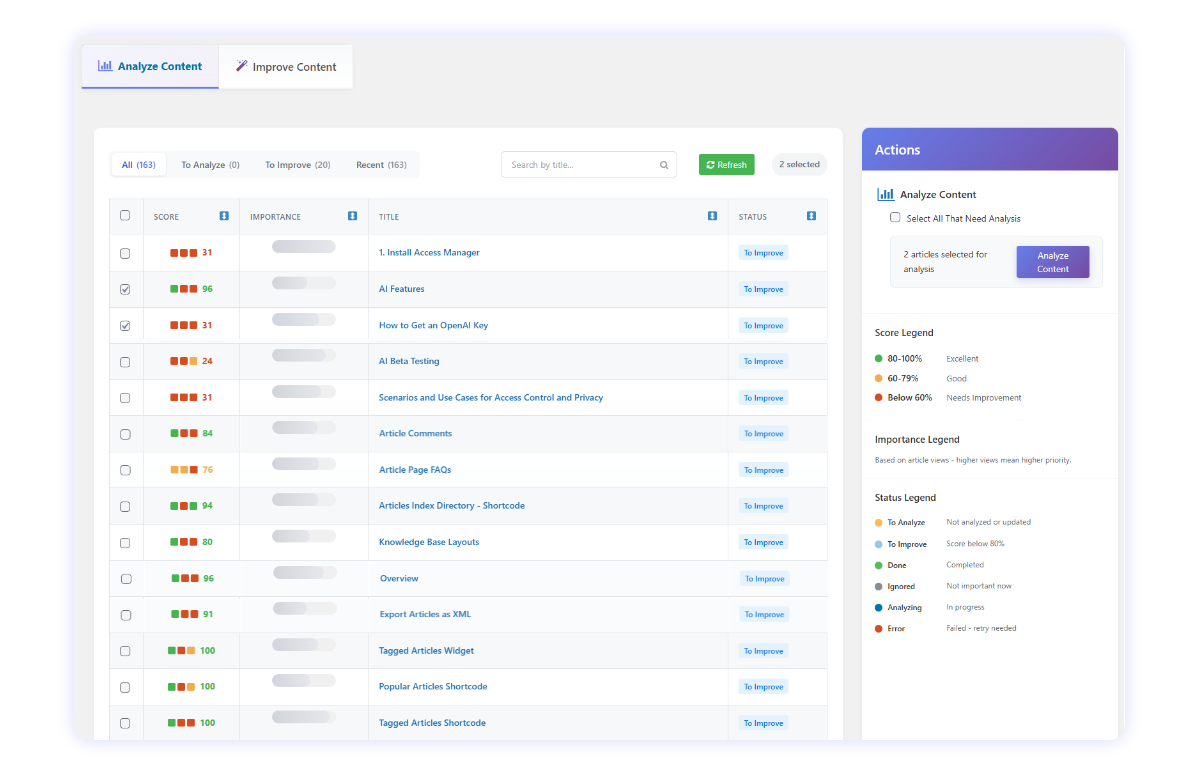
Score
After analysis, each article receives a Score. This score is a combined result of:
- Tags (quality and relevance)
- Content Gaps
- Readability
Higher scores indicate stronger overall content quality.
Importance is based on article views - more views = higher priority for improvement.
Click any article title to open its detailed analysis.
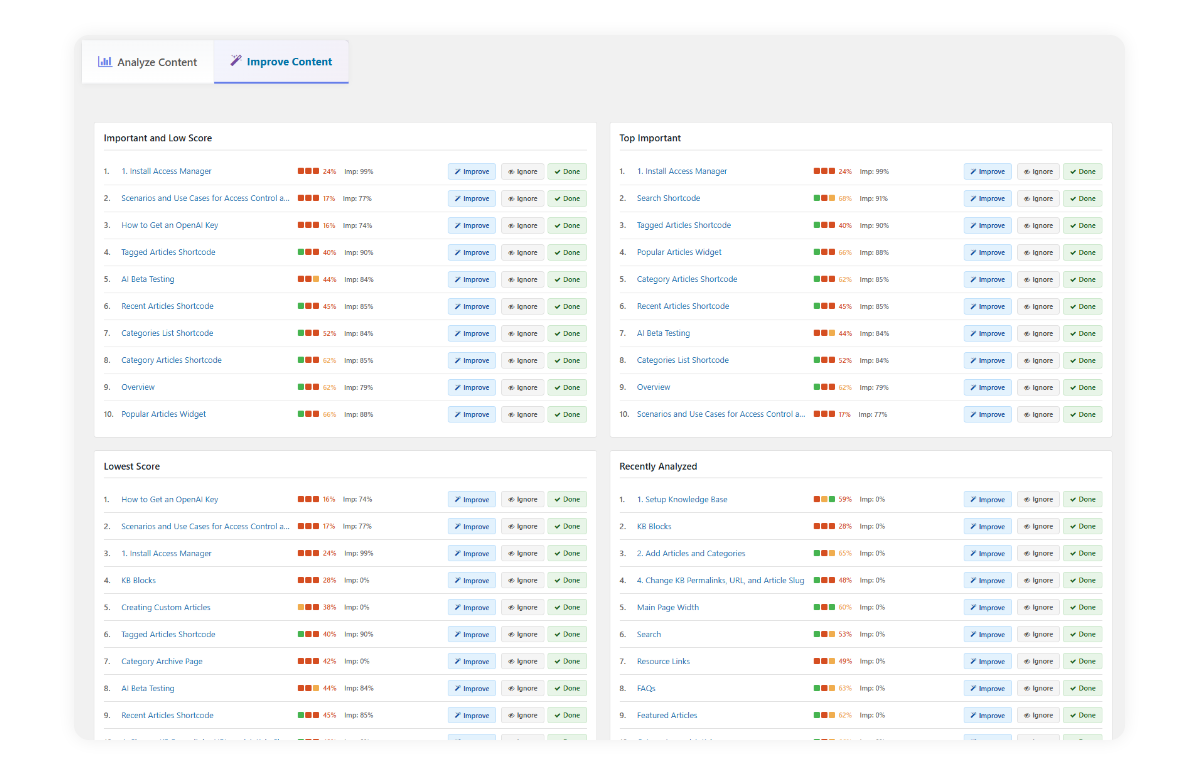
The Improvement Content tab groups your articles based on certain criteria.
Importance and Low Score - Articles with high traffic but low scores. These are your top priority to fix.
Top Important - Articles with the highest views and mixed scores.
Lowest Score - Articles with the lowest overall score.
Recently Analyzed - Articles that were analyzed most recently.
Ignore - Mark articles to ignore if you don’t plan to work on them right now.
Done - Mark articles as done, regardless of score, when you believe they’ve reached an acceptable quality.
Tags
Refine how your article is categorized and discovered.
Left column (AI review)
- Shows AI feedback on your current tags (accuracy, relevance, redundancy).
- Highlights missing broad/specific tags where helpful.
Right column (Manage tags)
- Add new tags, remove irrelevant ones, and save changes.
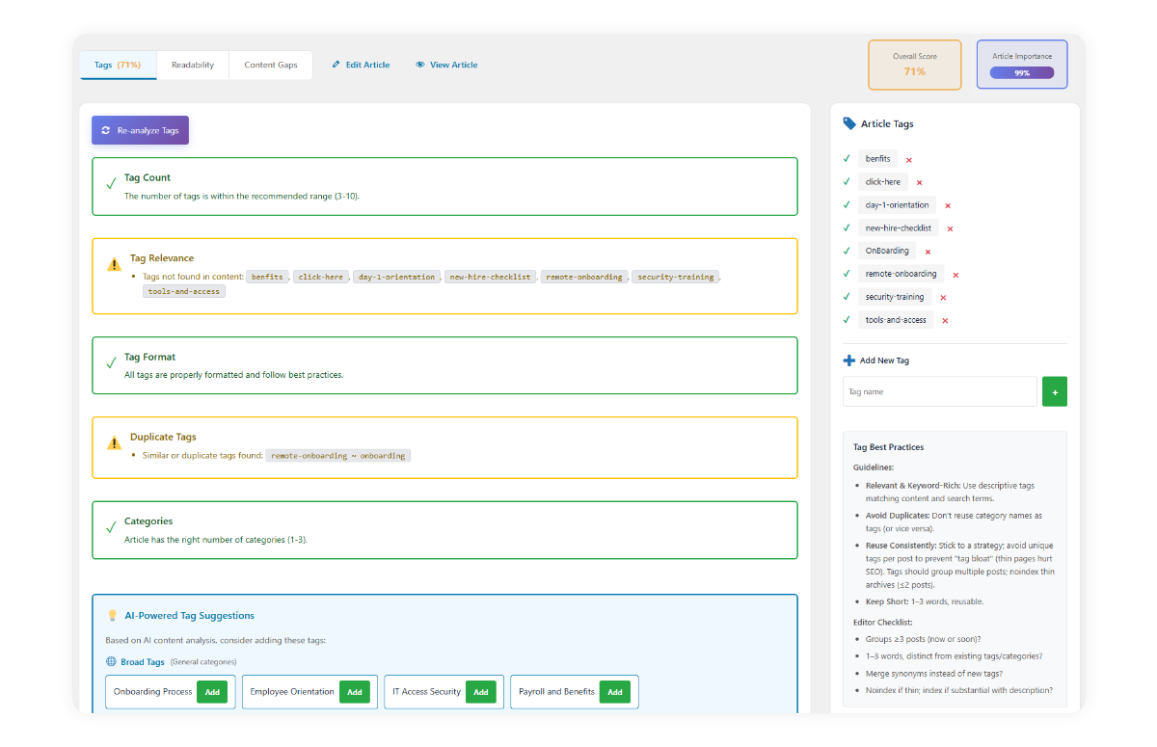
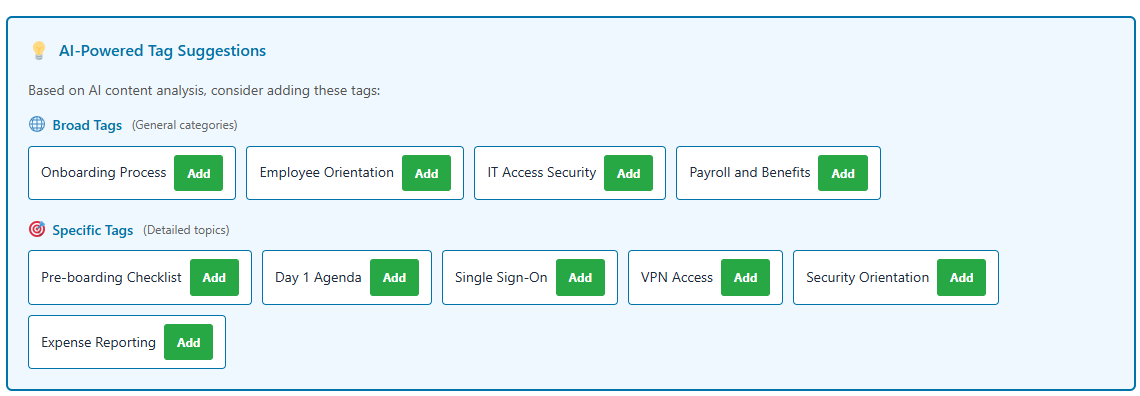
AI-Powered Tag Suggestions (PRO):
Below the analyzed tags, you’ll see smart, AI-suggested tags you can apply with one click.
Readability
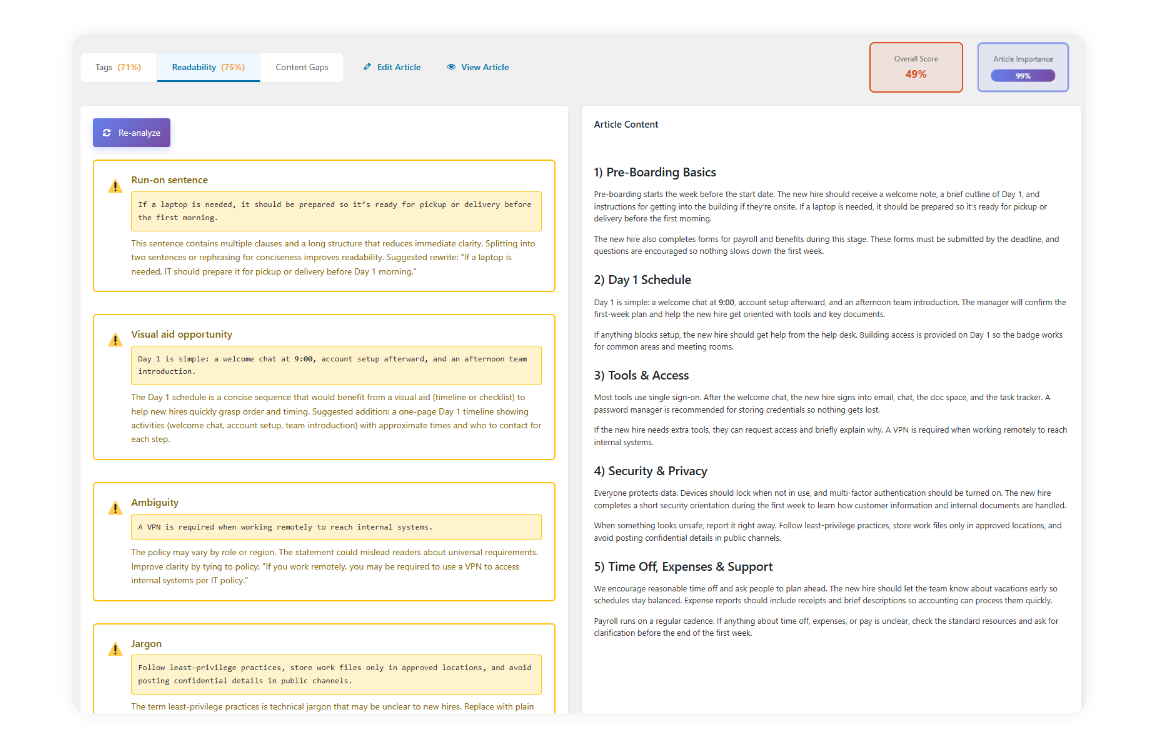
Make your content easier to understand.
Left column (AI analysis)
Lists readability findings such as long sentences, complex phrasing, punctuation issues, ambiguity, run-on sentences, and jargon.
Includes quick suggestions to fix each issue.
Right column (Article reference)
Displays the article content the analysis refers to so you can see issues in context.
Content Gaps
AI-Powered Content Gaps (PRO)
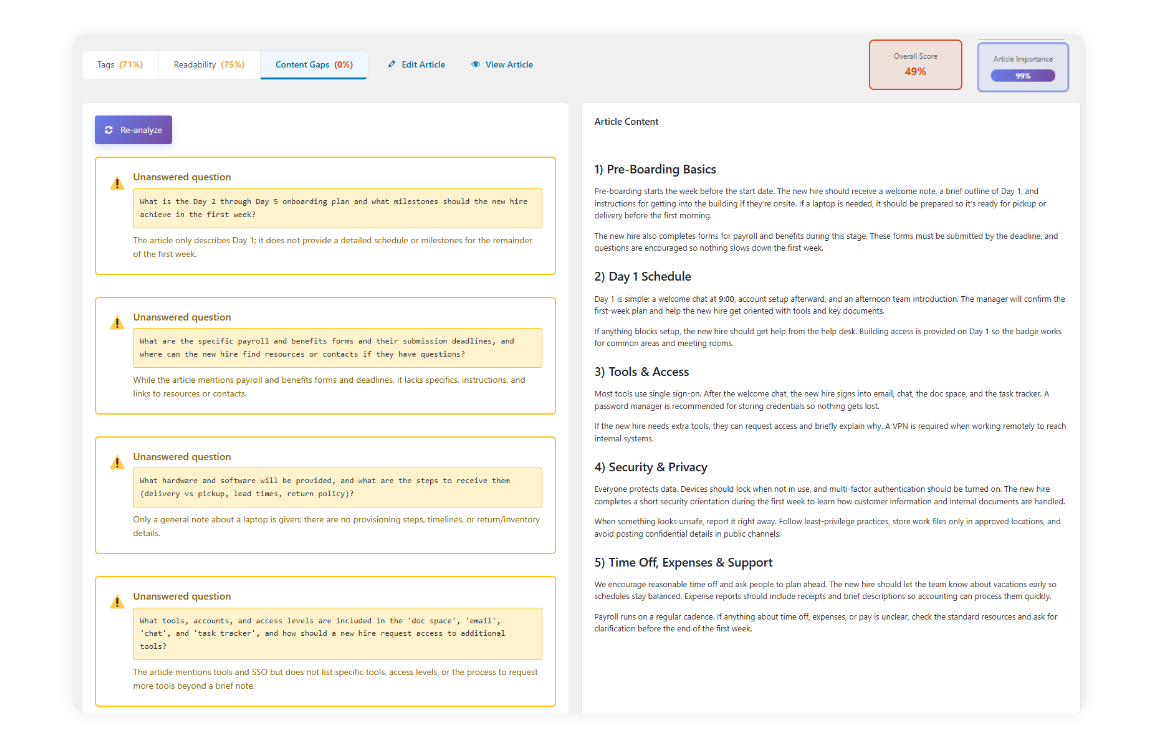
Identify questions your article doesn’t answer or topics that need more detail.
Left column (AI analysis)
Surfaces unanswered questions, missing steps, undefined terms, and ambiguous statements.
Groups gaps by priority so you know what to fix first.
Right column (Article reference)
- Displays the article content the analysis refers to so you can see issues in context.