
Search Knowledge Base by Keyword
This KB documentation is using Advanced Search, Links Editor and Elegant Layouts add-ons.
-
Echo Knowledge Base
-
Add-ons
-
Access Manager
Print
Glossary
Created On
Updated On
By:Dave
5 out Of 5 Stars
1 rating
| 5 Stars | 100% | |
| 4 Stars | 0% | |
| 3 Stars | 0% | |
| 2 Stars | 0% | |
| 1 Stars | 0% |
Views119
How It Works
- The Glossary is shared across all your Knowledge Bases.
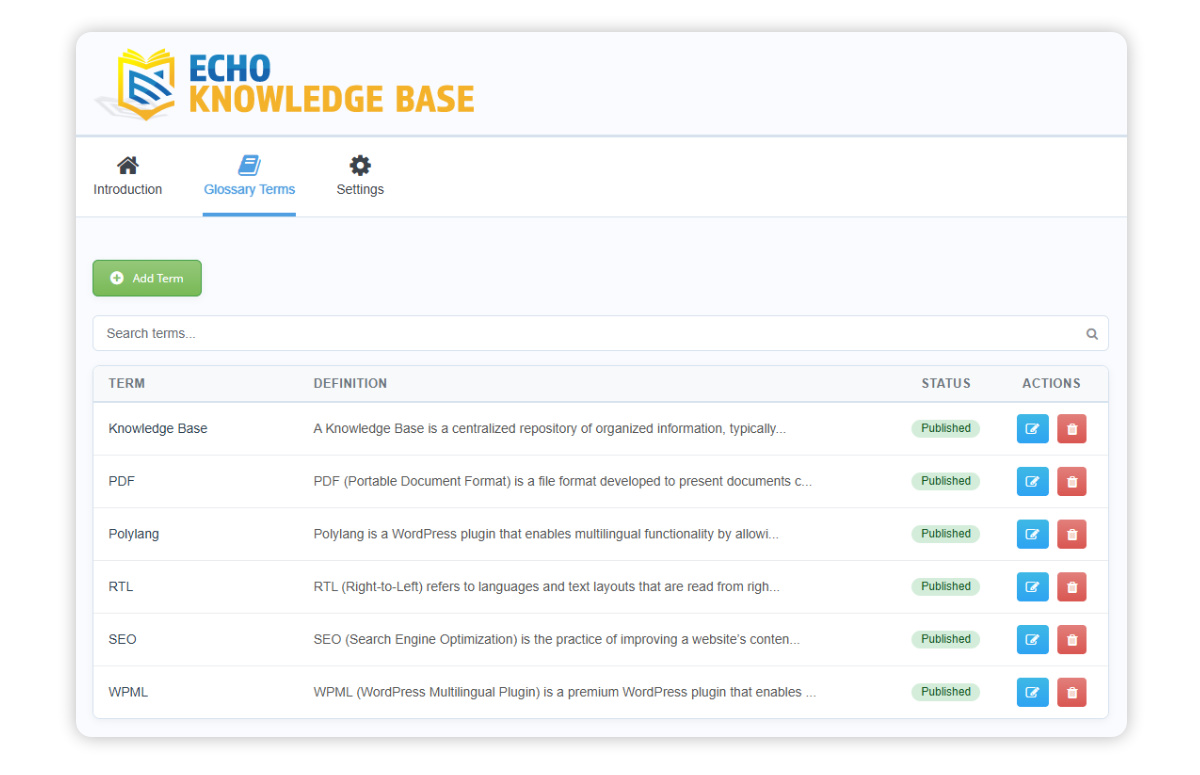
- Create terms with definitions in the Glossary Terms tab.
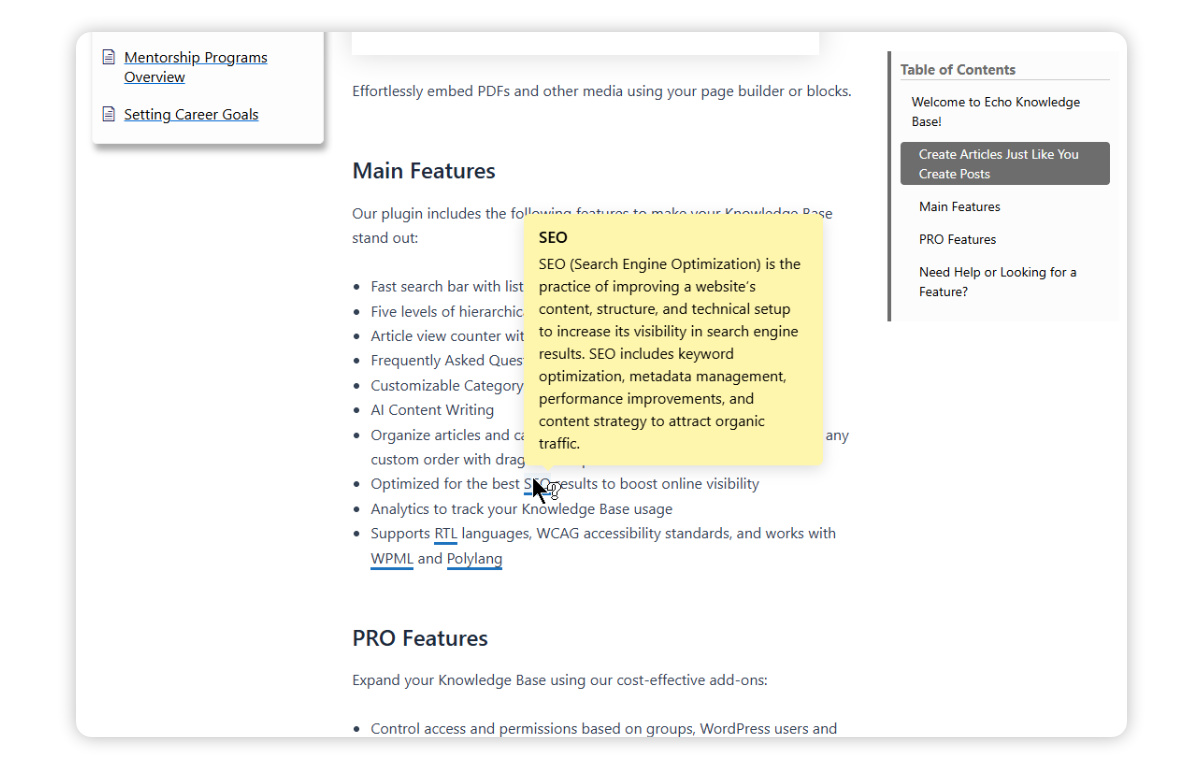
- Published glossary terms are automatically highlighted in your KB articles.
- When readers hover over a highlighted term, a tooltip displays its definition.
- Only the first occurrence of each term in an article is highlighted.
- Terms inside headings, links, and code blocks are not highlighted.
If the Glossary is not visible in the WordPress admin area, the feature may not be enabled. To enable it:
- Go to KB Configurations
- Open the Settings tab
- Navigate to the KB Article Page section
- Click Settings
- Scroll to the bottom of the page and enable the Glossary option
- Save your settings and reload the page.
Once enabled, the Glossary will be available in the admin interface.
Example
Glossary Terms
- Add glossary terms and definitions in the Glossary Terms tab.
- Set each term status to Published to make it appear in articles.
AI Glossary Term Generator
- AI scans your Knowledge Base articles to discover glossary-worthy terms and generate definitions.
- Review, edit, and approve suggested terms before they are added to your glossary.
- Accepted terms are saved as drafts so you can publish them when ready.
Available with AI Advanced Features
Glossary Block and Shortcode
See Glossary Index Shortcode / Block for details.
Was this article helpful?
5 out Of 5 Stars
1 rating
| 5 Stars | 100% | |
| 4 Stars | 0% | |
| 3 Stars | 0% | |
| 2 Stars | 0% | |
| 1 Stars | 0% |
5
Table of Contents