
Search Knowledge Base by Keyword
This KB documentation is using Advanced Search, Links Editor and Elegant Layouts add-ons.
-
Echo Knowledge Base
-
Add-ons
-
Access Manager
Icon Issues
0 out Of 5 Stars
| 5 Stars | 0% | |
| 4 Stars | 0% | |
| 3 Stars | 0% | |
| 2 Stars | 0% | |
| 1 Stars | 0% |
Overview
Icon-related issues in the Knowledge Base are typically caused by caching conflicts or page builder behavior that alters how shortcodes and HTML are rendered. These issues may appear as missing icons, incorrect icon styles, or misaligned icons on the frontend.
Below are the most common scenarios and how to resolve them.
Missing, Different Icons
In some scenarios, icons may appear missing, incorrect, or misaligned. This is usually caused by aggressive caching at the server or plugin level.
To resolve this issue, you may need to exclude the Knowledge Base files from your caching software.
Example Issue
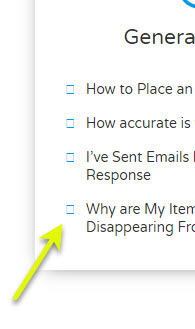
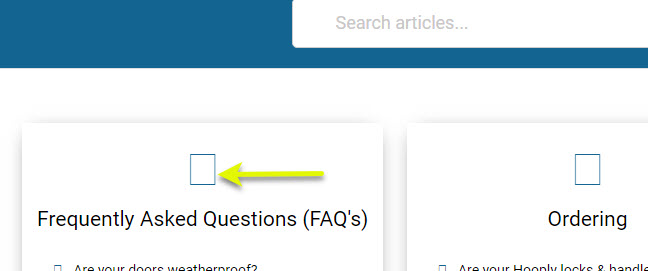
A common example of this issue is seeing square boxes instead of icons beside your articles or categories.
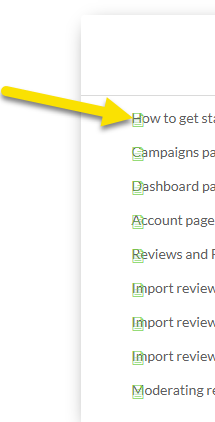
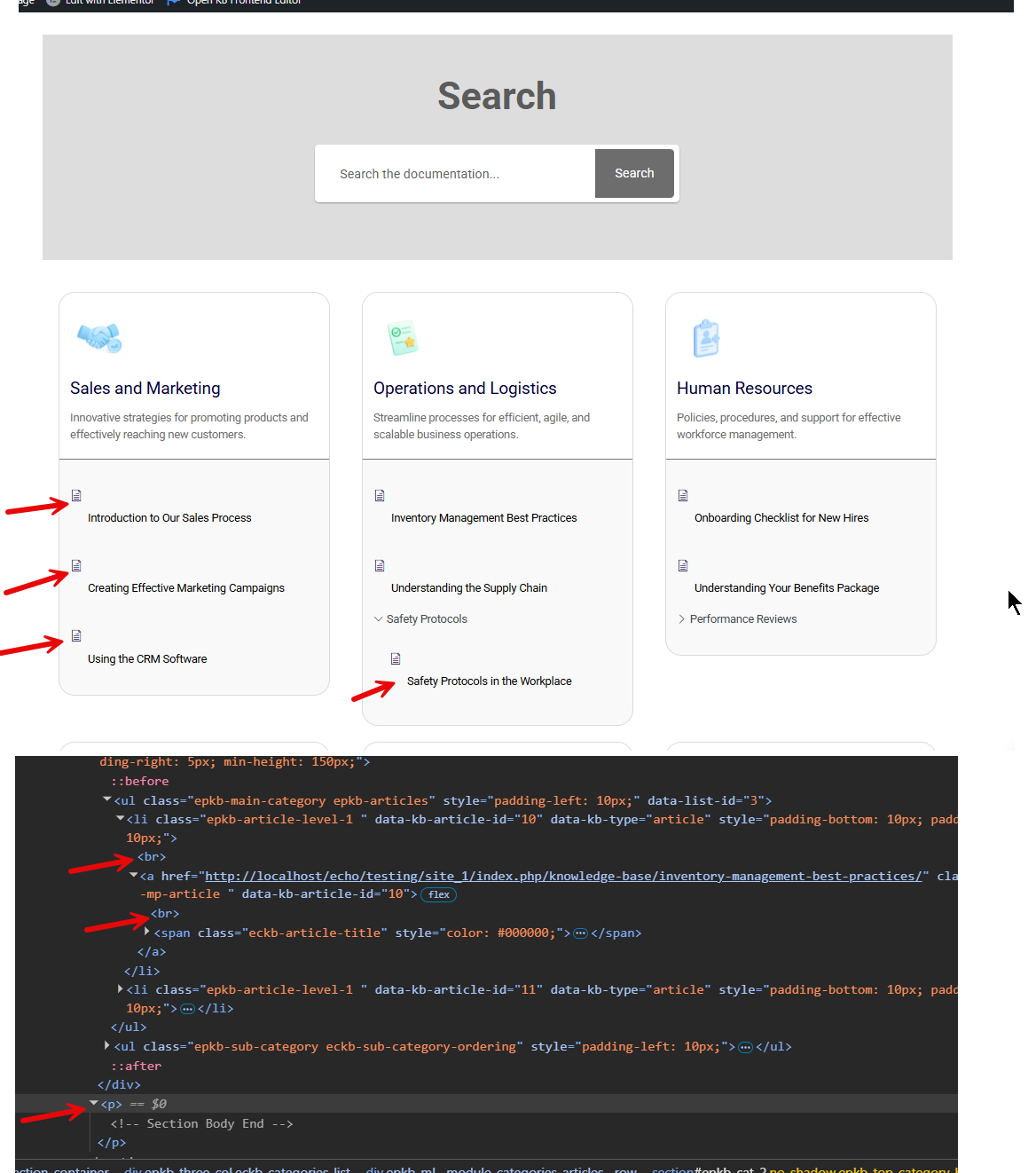
Another variation is icons displaying but appearing misaligned.
Icons are misaligned.
Files to Exclude in Caching Software
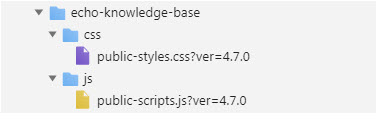
If you are using managed hosting or aggressive caching, you may need to exclude Knowledge Base files from caching.
Known Hosting Providers
-
SiteGround
(If your host provides server-level caching, consult their documentation for excluding plugin assets.)
Find the Plugin Causing the Issue
If caching exclusions do not resolve the problem, temporarily disable plugins that may interfere with icons (such as optimization, minification, or font-loading plugins) to identify the source of the conflict.
Icon Misalignment
When a Knowledge Base is created, the KB shortcode is inserted into the WordPress editor using the correct Shortcode block.
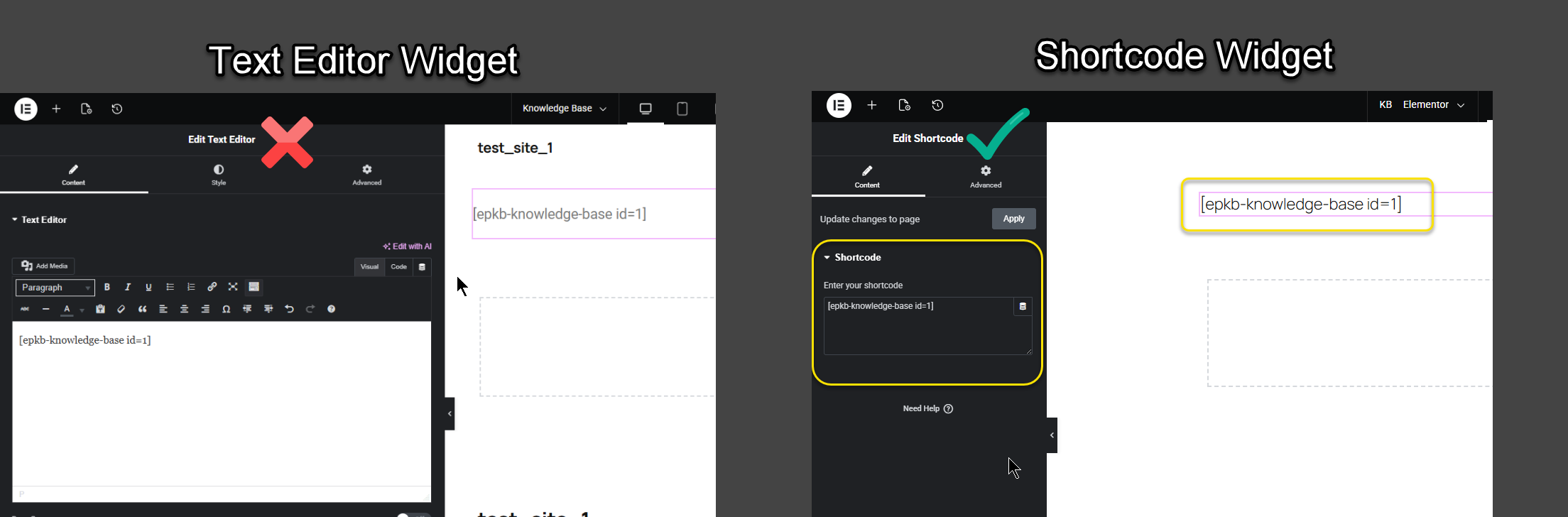
However, when switching the page to Elementor, the transition is not handled correctly (this is an Elementor-related issue). Instead of using Elementor’s Shortcode widget, Elementor places the shortcode inside a Text widget.
When additional elements are added to the page, Elementor triggers wpautop, which automatically injects unnecessary <br> and <p> tags into the Knowledge Base HTML. This breaks the layout and can cause icon misalignment.
Solution
-
Remove the Knowledge Base main page shortcode from the Text widget.
-
Reinsert the shortcode using Elementor’s Shortcode widget.
-
Save the page and clear any caches.
This should resolve the icon alignment issues.
If you are not using Elementor but are experiencing the same icon issues, check the page builder or theme you are using and ensure that the Knowledge Base shortcode is inserted using the correct shortcode-specific widget or module.
Some builders use generic text or HTML blocks by default, which can also trigger formatting issues similar to Elementor. Using the proper shortcode widget may resolve the issue in the same way.
0 out Of 5 Stars
| 5 Stars | 0% | |
| 4 Stars | 0% | |
| 3 Stars | 0% | |
| 2 Stars | 0% | |
| 1 Stars | 0% |