
Search Knowledge Base by Keyword
This KB documentation is using Advanced Search, Links Editor and Elegant Layouts add-ons.
-
Echo Knowledge Base
-
Add-ons
-
Access Manager
5. Define Access to Categories
0 out Of 5 Stars
| 5 Stars | 0% | |
| 4 Stars | 0% | |
| 3 Stars | 0% | |
| 2 Stars | 0% | |
| 1 Stars | 0% |
If you do not have the KB Groups add-on, you will only see the Public Group option. Get the KB Groups add-on here.
Each KB Group can have limited access to KB content. In particular, a KB Group can have the following levels of access:
- No Access – None of the KB Group users will be able to view and edit this category and its articles.
- Read-Only Access – Users of this KB Group can only view this category and its articles. They cannot assign categories.
- Full Access – Users of this KB Group can view, edit and create articles in this category.
Change KB Group Access Level for KB Categories
- Open Access Manager.
- Click on the Access to Categories tab.
- Select a group to change its access to categories.
- Select access level.
- Select one or more categories to give the selected access level. Repeat step 4 and 5 as needed.
- Save changes.
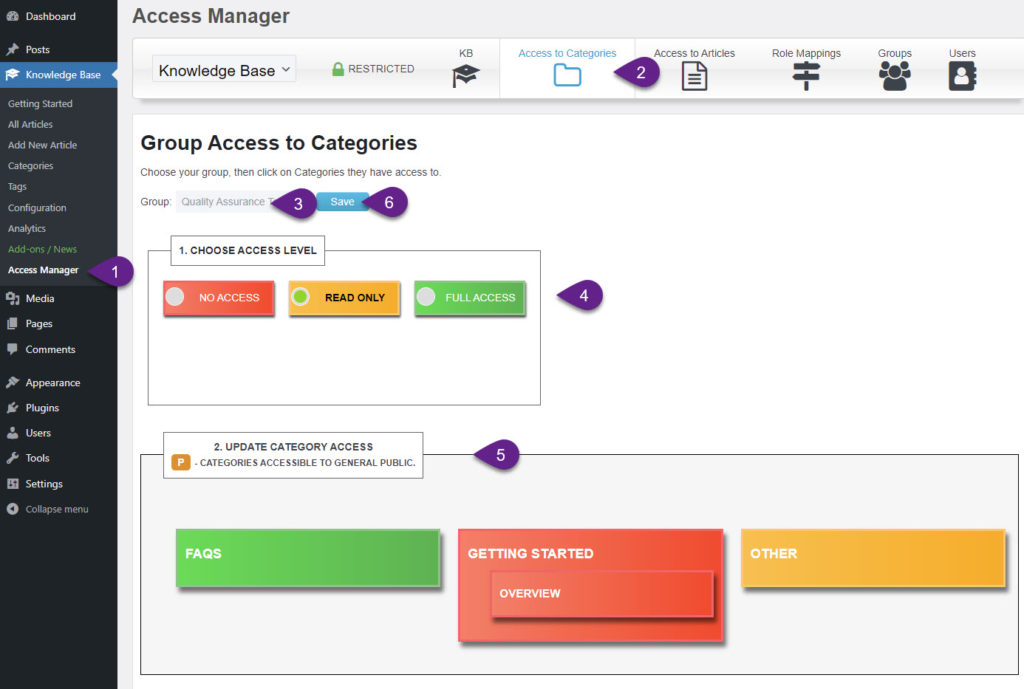
Access to KB Articles is defined using KB Categories. In other words, you cannot control access at the article level, aside from giving a group read-only access to specific articles (described in next article).
Public Categories
A category marked as Public is accessible to everyone, including visitors who are not logged in. Its published articles can be read without an account or membership in a private KB Group. Public access grants viewing permission; creating or editing content still requires the appropriate permissions.
To make a category public, open Access Manager → Access to Categories, select the Public Group, choose Read Only, apply it to the desired categories, and save. Without the KB Groups add-on, this option is labeled Visible to Everyone.
Draft Categories
Draft categories can be used as part of Group Editor workflow: Editor Workflow
0 out Of 5 Stars
| 5 Stars | 0% | |
| 4 Stars | 0% | |
| 3 Stars | 0% | |
| 2 Stars | 0% | |
| 1 Stars | 0% |