
Search Knowledge Base by Keyword
This KB documentation is using Advanced Search, Links Editor and Elegant Layouts add-ons.
-
Echo Knowledge Base
-
Add-ons
-
Access Manager
6. Assign Read-Only Access to Articles
0 out Of 5 Stars
| 5 Stars | 0% | |
| 4 Stars | 0% | |
| 3 Stars | 0% | |
| 2 Stars | 0% | |
| 1 Stars | 0% |
Access to articles is controlled by restricting access to KB categories of the articles rather than the articles themselves.
In some cases there is a need to allow users without access to categories to have read-only access to certain articles within restricted categories. This can be configured by selecting a public group (for public access) or a private group (which requires KB Groups add-on) and selecting articles for read-only access.
Assign KB Group Read-Only Article Access
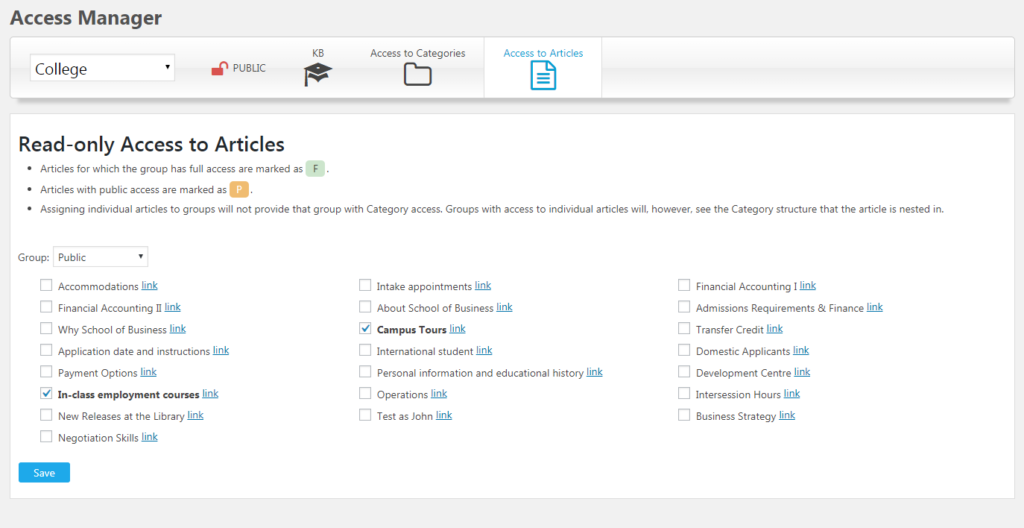
On Access Manager page, select the Access to Articles tab. Then select the desired KB Group and the articles to which the users of the selected KB Group should have read-only access.
Make Articles Public
An article can be publicly accessible through its category assignments or through an individual read-only access setting.
To make an article public:
- Assign it to a category that has Public access and save the article; or
- Open Access Manager → Access to Articles, select the Public Group, check the article, and save. This allows everyone to read that article while its category and other articles can remain restricted.
Make Articles Private
To make an article private:
- Under Access Manager → Access to Articles, select the Public Group, uncheck the article if it has individual read-only access, and save.
- Ensure the article is not assigned to any public category. Move it into restricted categories, or remove Public access from its existing categories. Changing a category’s access affects its other articles too.
- Give the intended users access through the appropriate KB Group or role settings.
0 out Of 5 Stars
| 5 Stars | 0% | |
| 4 Stars | 0% | |
| 3 Stars | 0% | |
| 2 Stars | 0% | |
| 1 Stars | 0% |